Look, try, check the result
Three small things to try in the demo account
You do not need to visit every screen to get a feel for the product. Try three small steps on an example task, checking what was saved along the way.
Open a demo account and its examples
Sign in with one of the accounts below, then open the example project on the same row. This is a shared account in the live app; other visitors can see your changes.
Public demo sign-in details · Open the sign-in page
- AI Demo 3Open the example projectOpen the announcement task
- AI Demo 4Open the example projectOpen the announcement task
Leave out personal information, private files and real email accounts. Keep the sign-in details unchanged. Sample data does not reset automatically; the team manages refreshes.
Before you begin
These accounts are shared and run in the live application. Stay in the “Demo · A small launch” example instead of changing someone else’s work.
- Use the published demo credentials in llms.txt to sign in through the normal sign-in page. Choose an account marked EN for an English starting preference.
- Find “Demo · A small launch” in Projects. Leave other projects and account settings as they are.
- If the example project is missing, refresh and check that you signed into the right account. If it is still missing, tell support; do not create a duplicate or delete existing projects.
1. Read the plan without starting anything
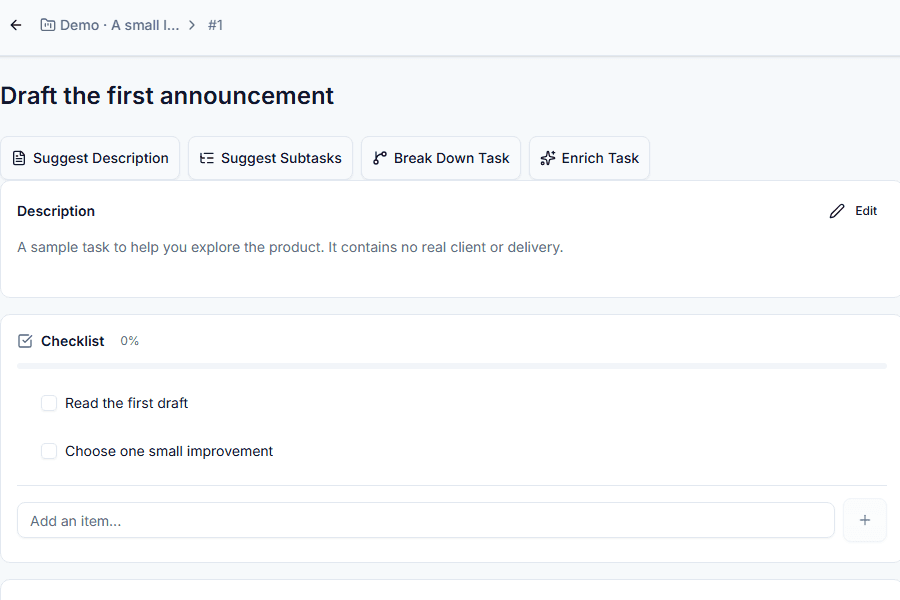
Start with the example project open. Expected result: you can see the title, description, time estimate and checklist; reading them does not start a timer.
- Open “Draft the first announcement”.
- Read the description and checklist. Can you explain what should be ready when the work is done?
- Look at the estimate separately from recorded time. If the task is read-only, check your account and access rather than trying to force an edit.
2. Start your time, take a break and check the record
Start with an example task you may track time on. If a timer is already running in the shared account, leave it alone and use another demo account. Expected result: the session you started closes and its entry appears on the task.
- Choose “Start” and check that the timer advances. If an acceptance step is offered, read what you are accepting first.
- Choose “Pause”; the timer should not advance during the break. “Resume” lets you continue.
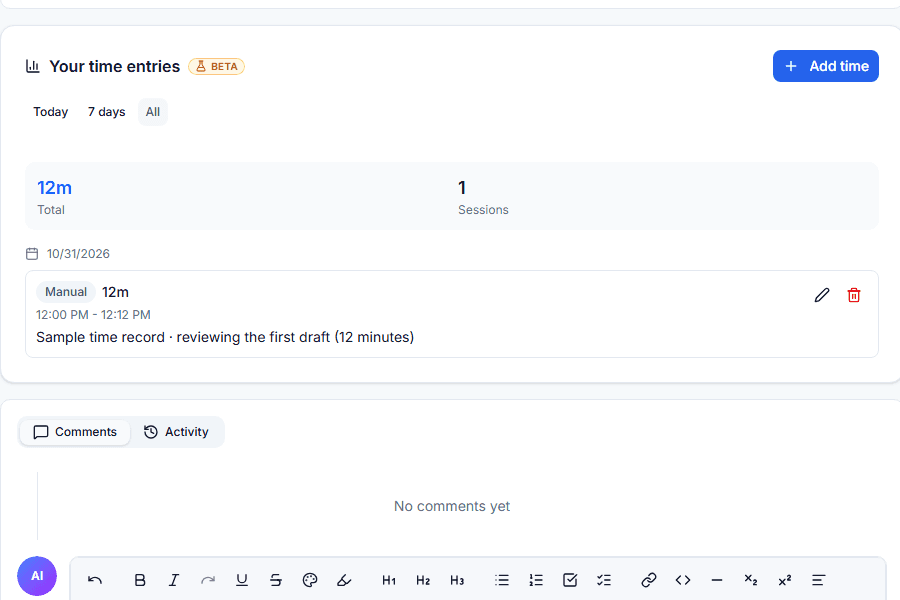
- Choose “Stop” only for the session you started. Open the time log and check the saved session; do not leave a timer running just to view its entry.
3. Tell completion apart from review
Start on the example task’s details. The prepared demo project is personal, so this example does not need a reviewer. Expected result: you can tell whether a review is required from the actions offered on the task.
- Inspect the completion action offered on the task. Complete only the work you did for this exercise; leave other work in the shared account alone.
- If a separate shared project offers “Submit for review”, remember that submitting is not completing. Submit only when you have permission, an actual deliverable and an eligible reviewer who is not an assignee.
- If a reviewer is missing or you do not have permission, stop here. Do not disable review, invite people or approve your own submission with another shared account; ask the project manager for help.
If a step does not go as expected
If you are unsure whether a change was saved, reopen the task and check its current state before trying again. Avoid making duplicate tasks or time entries. Demo data is shared, so the starting state may have changed; do not assume an automatic reset or a private trial space.
If you would like a look at the screen